MCP Server
Connect Claude/Codex to MachGen and generate from your AI agent.
MachGen runs a remote MCP server, so an AI assistant can generate images and video, edit past generations, and browse your history directly.
https://mcp.machgen.aiAuthenticate via OAuth
This works for Claude Desktop, Claude Code (CLI), Codex (both CLI and UI app).
Claude Desktop
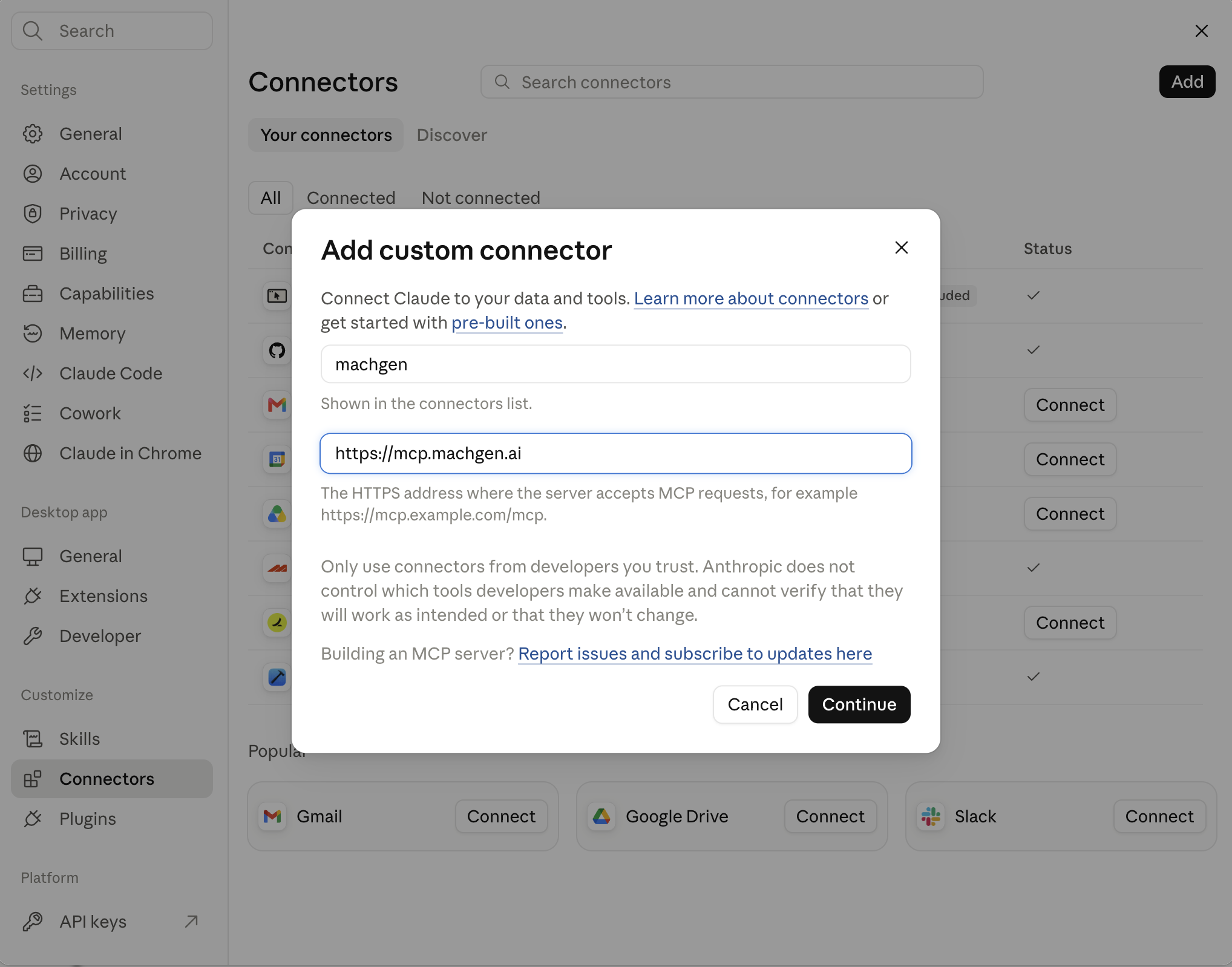
Go to Settings -> Connectors -> Add.
Add https://mcp.machgen.ai as the URL.
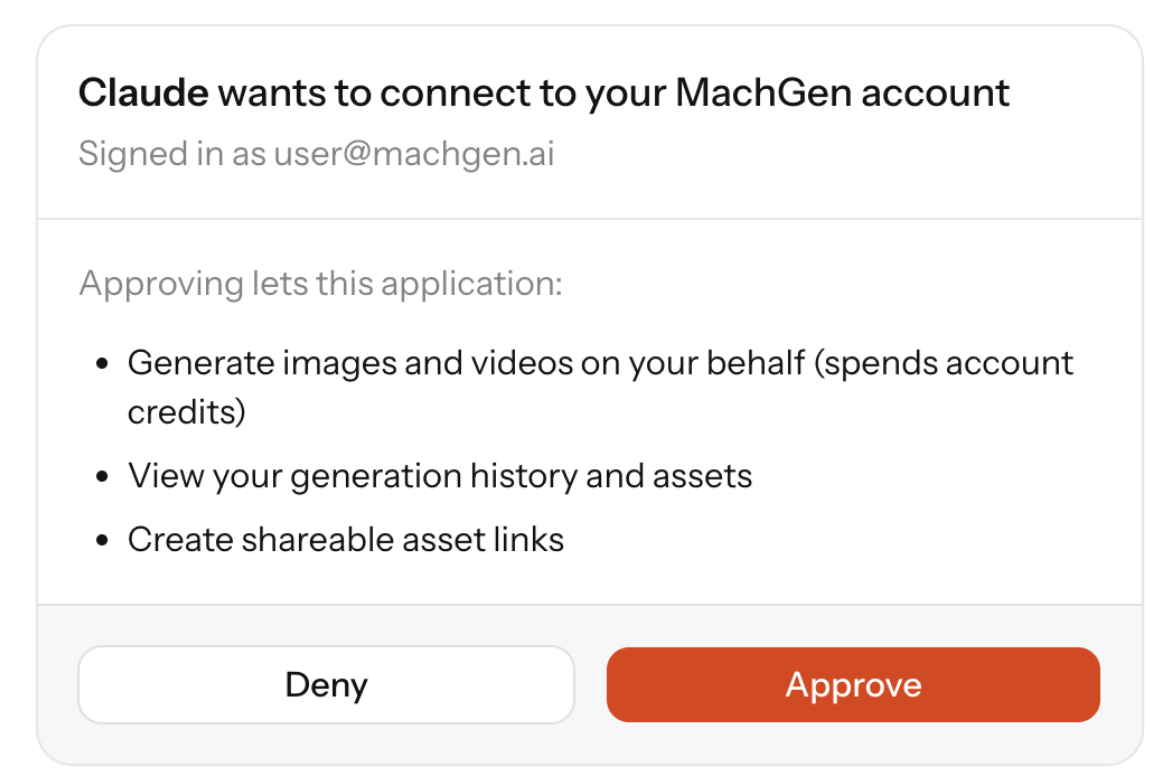
On the next screen, approve the OAuth.
Authenticate via API Key
Note: Claude Desktop cannot use this approach. Use OAuth above.
Authenticate with the same API key you would normally use. Create one under
Settings -> API keys; it looks like MGA_<key_id>:<secret>.
Claude Code
claude mcp add --transport http machgen https://mcp.machgen.ai \
  --header "Authorization: Bearer MGA_<key_id>:<secret>"
Run /mcp inside Claude Code to confirm the server shows as connected. The
command saves the configuration without checking the credential, so a bad key
shows up as failed here rather than at setup time.
What you can ask for
Once connected, ask in plain language - the assistant picks the tools:
- "What video models can do 1080p at 16:9, and what would 5 seconds cost?"
- "How much balance do I have left?"
- "Generate a product shot of a ceramic mug on a linen backdrop."
- "Make that warmer and move the mug left."
- "Animate it for 5 seconds with a slow push-in."
- "Save 1.25s through 3.75s of that video as a new clip."
- "Quote the exact cost, then upscale that video to 4K."
- "Download the finished audio as a file I can reuse."
- "Give me a link I can send to the team."
Seedance 2.5 draft mode is requested on the REST body, not through these tools. See Seedance 2.5.
How generation works
Generation is asynchronous. The generate and upscale tools return a task_id
right away and the assistant polls get_task until it finishes - images in
seconds, video usually in minutes. You will see it check back a few times; that
is expected.
When an image or video completes, supported chat clients render it inline in a compact media card with native video controls. Images also include vision content, so the assistant can inspect the result and iterate instead of describing it blind. A time-limited download link remains available as a fallback for clients that do not support rich MCP Apps.
Video upscaling has a separate workflow. The assistant first reads the available
UPSCALE target tiers and engines, quotes the exact price for your owned source
video, submits only after the quote, and polls the returned task. You can point
it at a prior task id or MachGen asset URL; source resolution, frame rate, and
duration are resolved by the server. Some UPSCALE surfaces accept only sources
generated by specific models and tiers - list_models reports this as the
surface's source_requirement (MiniMax H3's 2K regeneration takes only its own
768p outputs); any other source is rejected.
Tools
| Tool | What it does |
|---|---|
list_models | Available models with their exact sizes, aspect ratios and durations |
get_price | What a generation would cost on your account, before you run it |
check_balance | Your account's current spendable balance |
generate_image | Text-to-image, or image-to-image with sources |
generate_video | Text-, image-, reference-, or video-to-video |
generate_audio | Speech, dialogue, sound effects, or music |
extract_video_clip | Save an exact subsection of an owned video as a reusable video, preserving audio |
edit_image | Edit a previous generation by task id |
quote_video_upscale | Exact cost to upscale an owned completed video to a supported tier |
upscale_video | Submit that source-aware video upscale |
get_task | Poll a task; attaches the image or video for inline preview when done |
get_tasks | Check up to 50 distinct task IDs in one call |
get_task_params | The exact settings a past task used, to re-run with one change |
list_history | Your past generations |
get_asset | A finished asset's media preview, URL, size, and image vision bytes |
download_asset | A finished image, video, or audio as embedded bytes or a raw HTTPS download manifest |
create_asset_link | A shareable link that works without signing in |
Use get_tasks to check 1-50 different task IDs at once. Results follow the
order you provide. Empty lists, duplicate IDs, and more than 50 IDs are rejected.
Tasks that do not exist or belong to another user return not_found for that
item; your other results still return normally. Set wait_secs to wait up to
120 seconds for all accessible tasks to finish, then receive their current
states. Images are omitted by default. With include_image=true, inline images
share a 4 MiB raw image-byte budget; base64 encoding can make the response larger
than 4 MiB. Use get_asset for previews and download links.
For YuE2 instrumental music, call generate_audio with kind="music",
model="YuE2-3B", a style in prompt, and force_instrumental=true. You may provide
lyrics or section tags in lyrics to help shape the track's flow and duration.
Lyrics are used only to plan the music. For example, use [Intro], [Verse],
[Chorus], and [Outro] to suggest a structure. Exact duration and section order
are not guaranteed. This field is optional, with no minimum length and a maximum
of 10,000 characters. Omit duration_secs. Vocal songs require 400 to 10,000
lyrics characters.
Both modes return FLAC audio capped at approximately six minutes; audio reaching
the cap is truncated and returned successfully.
Instrumental mode does not guarantee the absence of vocals. Generated tracks may
still include singing or wordless vocalizations, such as humming.
Use prompt for the musical style and lyrics for any planning lyrics.
Asset links
Every finished generation has a stable URL:
https://www.machgen.ai/api/v0/assets/<task_id>That URL requires your credentials, so it opens in your signed-in browser but
not for anyone else. To share a result, ask for a link - create_asset_link
mints a time-limited URL (24 hours by default, up to 7 days) that works without
signing in. It grants read access to that one asset and nothing else, so it is
safe to paste into a message; your API key never leaves your machine.
To save or reuse the actual file, ask the assistant to download the asset.
download_asset embeds files up to 8 MiB directly in the MCP result with their
filename and MIME type. Larger files return a time-limited raw HTTPS download
manifest without loading the whole file into the API server or injecting a
video/audio URL into model context. The assistant saves it with its local file
capability using the returned filename. Every path checks ownership and
preserves the stored file type, original bytes, and filename. Clients that
explicitly support MCP resources can still read the separately advertised
machgen://assets/<task_id> resource, but downloads do not depend on automatic
resource handling.
Rate limits
MCP calls draw on the same per-user budget as the REST API, so heavy tool use and heavy API use share one allowance.