Project Assets
Add assets to a project and reuse them as generation references.
1. Add assets
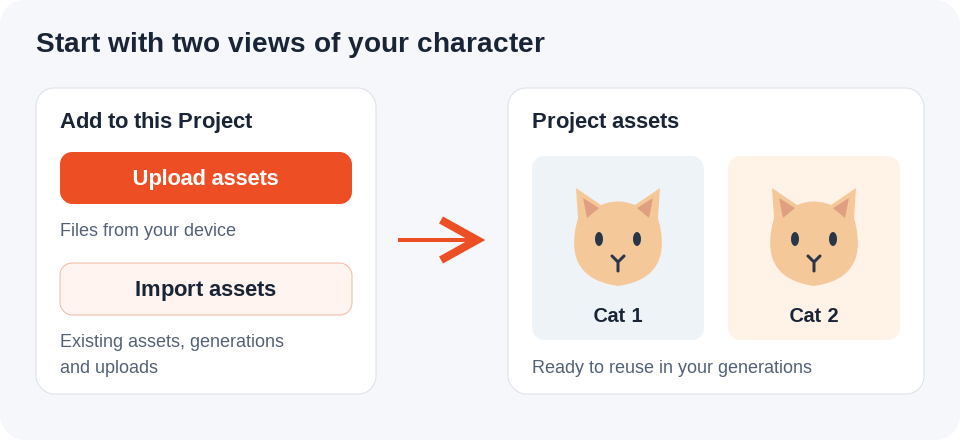
In Generate, select a Project and click Project assets beside the resolution filter.
- Upload assets: add images, videos or audio from your device.
- Import assets: add existing assets, generations or uploads.
2. Use references
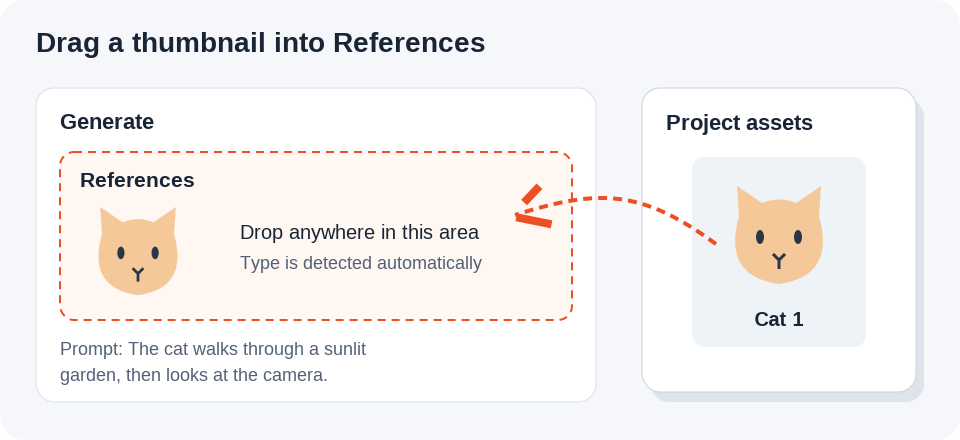
Drag a thumbnail anywhere into References. Its type is detected automatically; the selected model's type and quantity limits still apply.
Or click Choose from assets. Selecting an asset from another Project also adds it to the current Project.
You can also type @ followed by an asset name in the prompt, then select a
reference to use it.
3. Combine assets
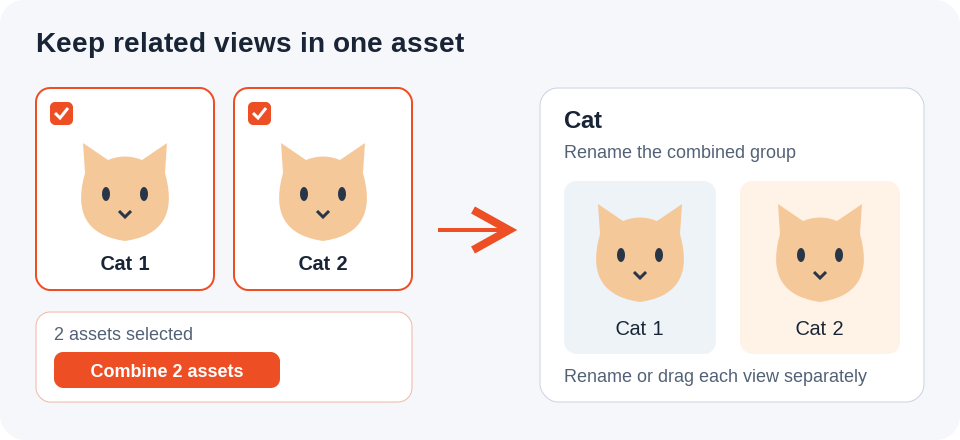
Select at least two assets using their checkboxes, then click
Combine in the bottom bar. Open the group to rename or drag individual references. Use Undo combine to undo.
Assets must belong to the same set of Projects to combine.
Manage your library
Open Assets to manage all assets and their Projects. Removing from a Project keeps the global asset. Renames apply everywhere; global deletion removes the asset from every Project but keeps the original media.